Setup Extended Search Keys
To configure an extended search key
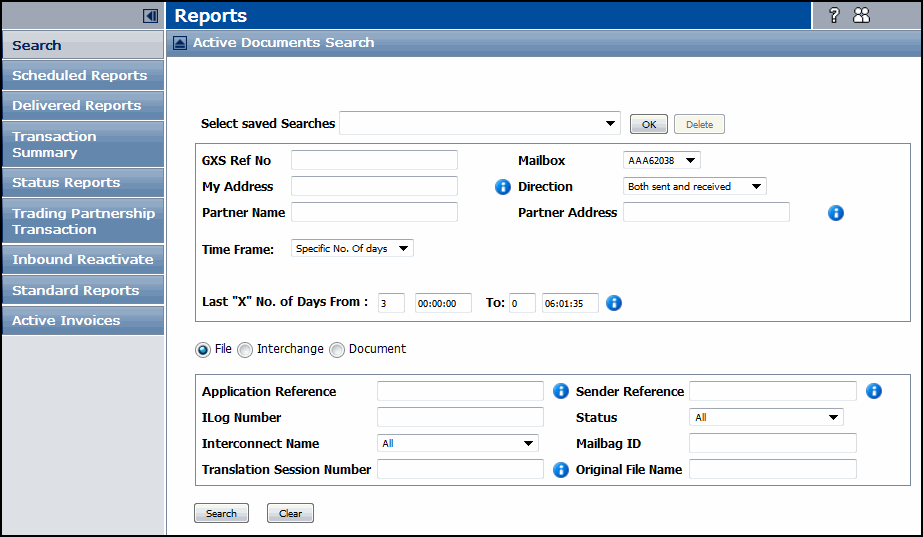
The Active Documents Search page opens.
|
2
|
Select Document for the search Level.
|
|
3
|
Click Active Invoices in the Navigation Panel.
|
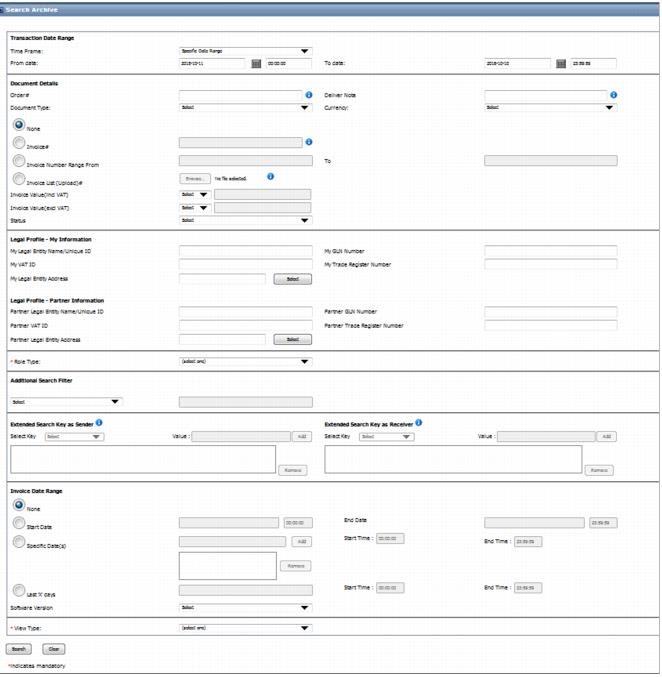
The Search Archive page opens.
|
5
|
Specify the Role Type, either Sender, Receiver or both.
|
Note: If Sender is selected, the Extended Key Search as Receiver fields are disabled (and vice-versa). If both are specified, both sections are enabled.
|
6
|
Select a key to configure from the Select Key drop-down menu.
|


|
Type a value for the search in the Value field. This value can be anything, that is relevant to your operation, for example, a serial number, expiration date, or a specific term.
|
|
8
|
Click Add.
|
The new key displays in the key list.

|
9
|
Select the View Type, either Legal Archive or Secure Delivery.
|

|
10
|
Click Search.
|
 Trading Grid Online User Guide PDF
