Download Multiple Items
To download multiple items from the Search Results page

|
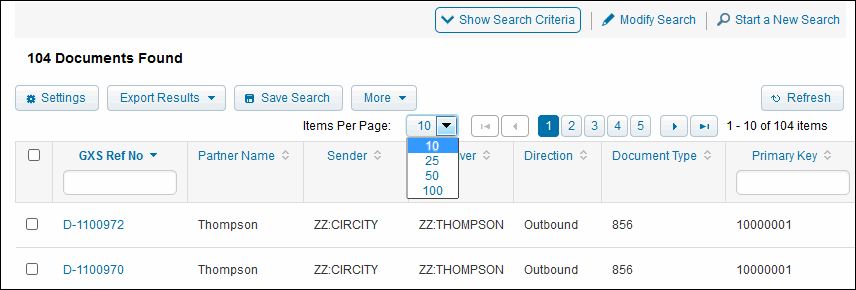
To select up to 100 items on a page at one time, specify the number from the Items per Page drop-down menu.
|
|
2
|
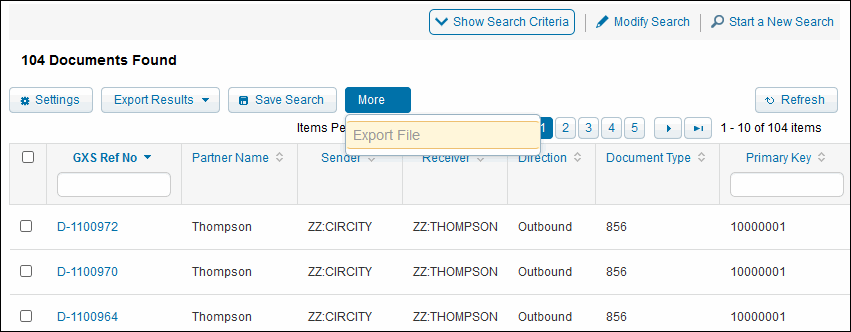
Click More > Export File.
|
|
|
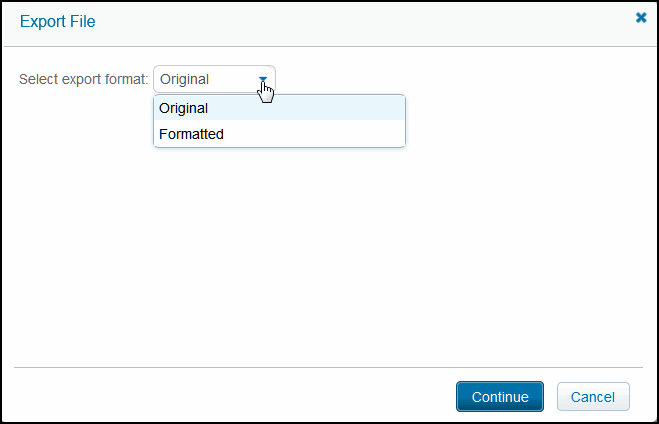
Original: Refers to the original data in the format as it was received.
|
|
|
Formatted: Refers to a formatted version with line breaks inserted for easier viewing.
|
|
4
|
Click Continue.
|
|
5
|
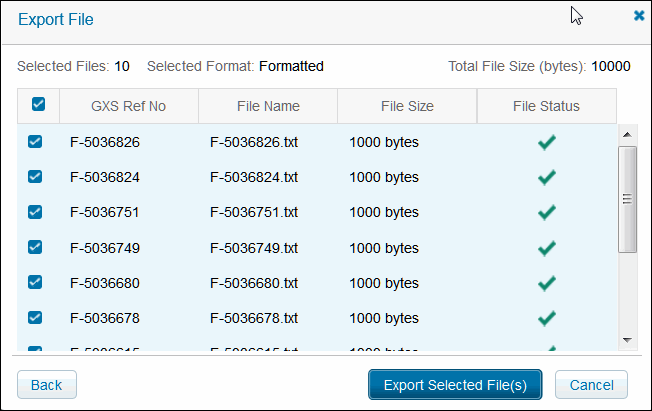
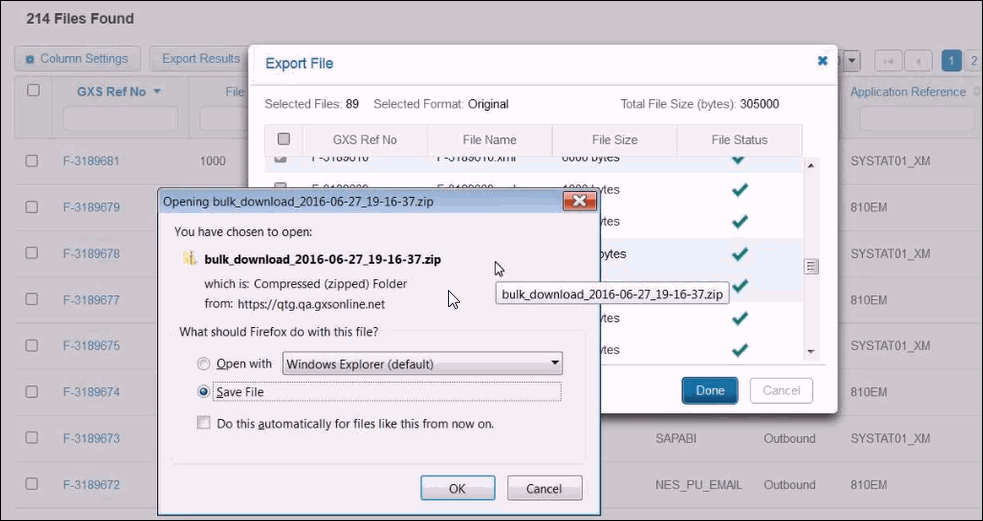
Click Export Selected Files(s) and follow the prompts to bulk download the compressed (zipped) data files.
|
|
6
|
Select Save File to save the .zip file to your Windows Explorer Downloads folder.
|
 Trading Grid Online User Guide PDF
