To view or download a transaction file
|
1
|
Click the Transaction Manager tab.
|
|
2
|
Click the Control Number of the applicable transaction.
|
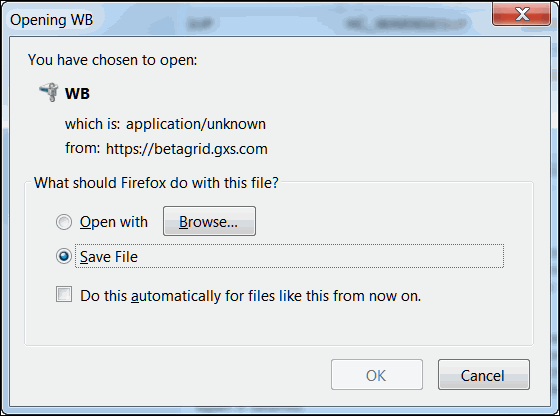
The File Download dialog box opens.

|
Select Save File. Follow the prompts to download the transaction file to your desktop.
|
|
|
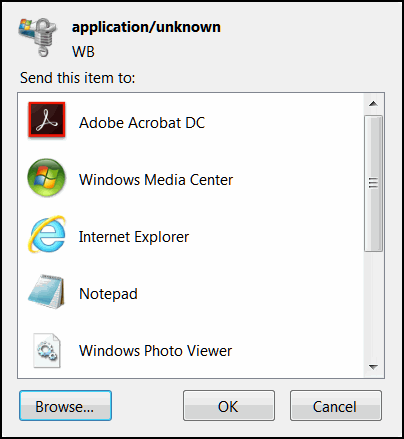
Select Open with, and click Browse to open the application.
|
|
|
After you receive a transaction, it is viewable as an “opened” transaction in your Inbound Status report under the Reports tab. From the report, select the transaction and click the Inbound Reactivate command to send the transaction back to your File Inbox again. For more information, see “Document Manager.”
|
 Trading Grid Online User Guide PDF
