Use this procedure to download files from Retrieve Files (files your partner sent to you for download in FTS) or Send Files (files your company uploaded to FTS for download by your trading partner).
You can download a file with any status.
To view a file, first download it, then open it. You cannot open files in FTS.
To export metadata for files, see “Export FTS File Metadata” on page 31.
(Hubs only) To view whether or not your trading partner downloaded a file, view the partner’s FTS. See “View a Partner’s FTS” on page 33.
To download files in FTS
|
1
|
|
4
|
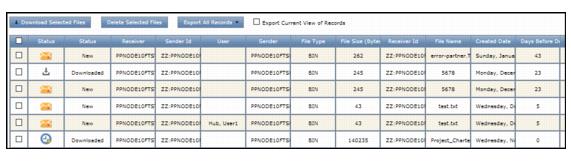
Above the list, click Download Selected Files, or right-click the table and in the menu select Download Selected Files. A confirmation message displays.
|
Multiple files save in a zip file.
|
5
|
Open or save the file(s). The Downloaded icon displays in the file row.
|
 Trading Grid Online User Guide PDF
