An attached file cannot exceed 5 MB.
To attach and send a file to a partner
|
1
|
|
2
|
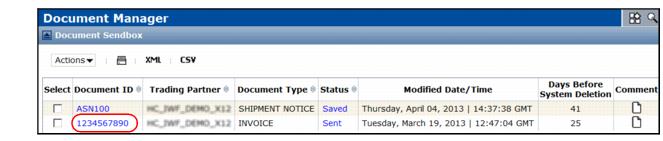
The Document View page displays your document contents.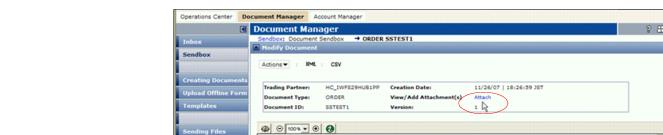
|
3
|
|
a
|

|
b
|
In the Description field, type a descriptive title for the attachment.
|
|
c
|


|
Send to immediately send the document to your Trading Partner. The document appears in your Sendbox with a status of Sent.
|
|
|
Save to save the form and add the document to your Sendbox, where you can later send it. The document has a status of Saved.
|
 Trading Grid Online User Guide PDF
