To pack packing units (cartons, for example) into a larger packing unit (a pallet, for example), you create the larger packing units and associate the smaller packages to them.
To pack packing units
|
1
|
If you are not in the packing engine, at the top of the ASN form click Pack. The Packing Screen page opens.
|

|
a
|
In the Add field, type the number of large packages to create for the shipment.
|
|
b
|
In the Select Packaging Type dropdown, select the package type — for example, Pallet. Available types vary by trading community.
|
|
3
|
Click
 Add. Add. |
The newly created packaging unit(s) is added to the Package(s) list on the right.
|
4
|
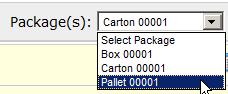
The packaging unit displays in the packing area at right.
|
5
|
To pack the container packaging unit with smaller packages, click Associate Package.
|
The Associate Package dialog displays packages available to pack into the pallet or container. Your community might display item SKU, Product, and Quantity data.
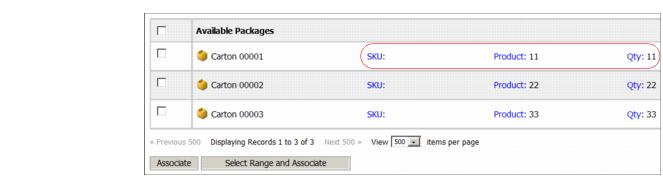
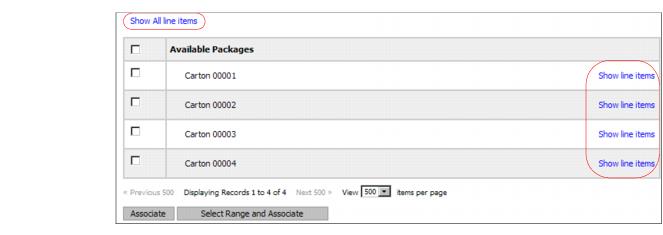
If your community displays packages that contain different types of items, to show SKU, Product identifier, and Quantity data for items in all packages, at the top left, click Show All line items. To show data only for specific packages, click Show line items in the package row.
After clicking Show All line items, the dialog displays as below. 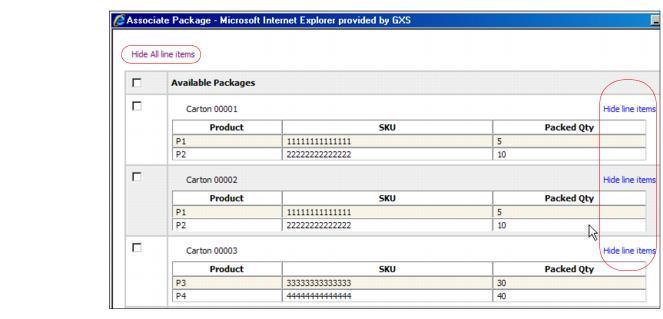
To hide item data, click Hide All line items or Hide line items.

|
|
|
|
|
To select a consecutive series of cartons in the list, click the checkbox for the first and last carton (or container) in the series, then click Select Range and Associate. All packages, including and between the two that you selected — for example, cartons 14-20 — are automatically packed.
|
The Associate Package dialog closes. On the Packing Screen page, the packed cartons or containers display in the Associated Packages section. 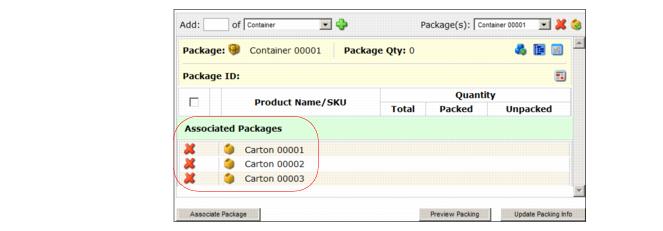
 Trading Grid Online User Guide PDF
