Pack Packages
To pack first-level packages into other packages, see “Pack Packages into Larger Units” on page 245 procedure.
To pack packages

|
After you specify the shipment information, click Pack in the ASN form.
|
|
|
Click the ASN link in the Document ID column.
|
|
|
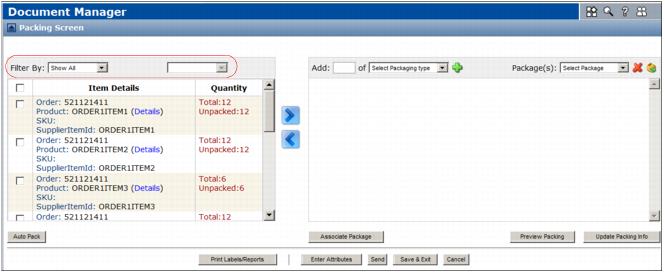
The left section displays order and item information, based on your selections in the “To create a Ship Notice from a Turn Around document” on page 236 procedure. For each line item, the Quantity column displays the total number of units of the line item and the number of unpacked units.
The section on the right is where you pack items.
|
2
|
To see only specific items on the Item Details list, in the Filter By drop-down menu at top left, select the data element to filter by (for example, Order or SupplierItemID), then in the right drop-down menu either select a specific value or leave Show All selected. The list updates.
|
To see the full list again, click Show All.
|
3
|
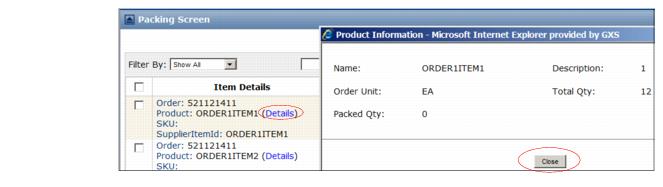
To view information about an item, such as a description, click the Details link for that item. A dialog box displays. Click Close to close the box.
|
|
a
|
In the Add field, type the number of packages to create.
|
|
b
|
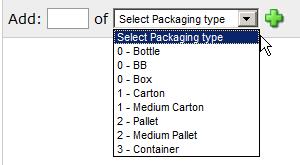
In the Select Packaging Type drop-down menu, select the package type — for example, Carton. Package types are grouped by packing level from lowest to highest — for example, 0, 1, 2, and 3.
|
|
5
|
Click
 Add. Add. |
The newly created packaging unit(s) display on the Package(s) list on the right. The list is ordered from the lowest to highest level of packaging. 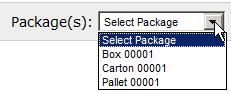
|
6
|
In the Package(s) list, click a packing unit.
|
The packaging unit displays in the packing area at right. It includes no items yet.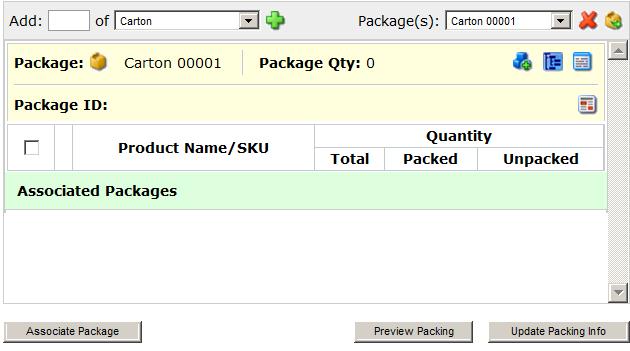
|
7
|
If your community is set up for you to specify a Package ID or package Internal Code, add that information.
 |
|
9
|
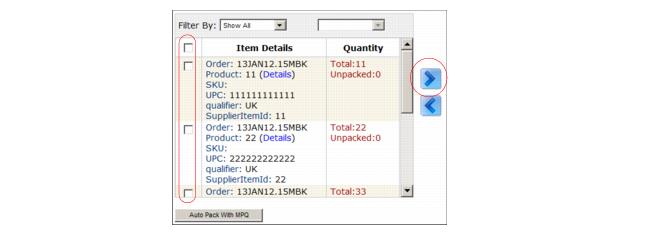
Click the Move Right icon to add the item(s) to the packing area on the right.
|
Line items display in order in the packing area.
At right, Package Qty displays the total quantity of items in the package, and the Packed column displays the quantity of units packed for each item in the package. Unpacked item quantities display on both sides.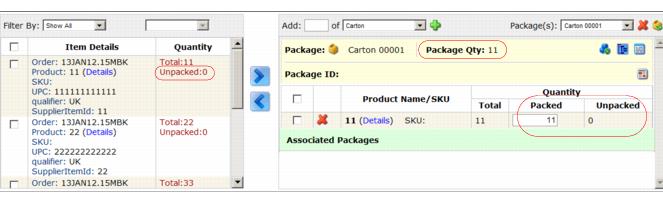
|
10
|
In the Packed field, change the number of units to pack in the selected packaging unit.
|
|
a
|
Click
 Replicate. Replicate. |
If a message displays about missing user-defined attributes, return to the Packing Screen to populate the user-defined attribute fields and then click Replicate again, or continue without populating them. See also “Add Mandatory Field Values” on page 248.
A dialog displays to select the replication method. 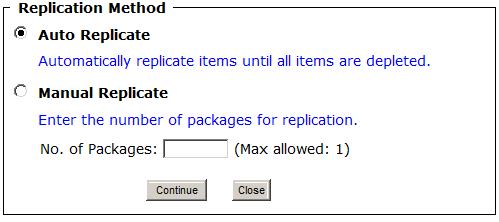
|
|
Auto Replicate — The system packs all of the remaining units in as many packages as needed.
|
|
|
Manual Replicate — In the No. of Packages field, specify a maximum number of additional packages to pack with the remaining items, such as 1 or 2. This might result in some units remaining unpacked.
|
|
c
|
Click Continue. A message displays the result.
|
|
d
|
The Packing Screen page re-displays. For Auto Replicate, Unpacked quantities are 0.
 Trading Grid Online User Guide PDF
