You can create a new Ship Notice, or create one from a Turn Around document or an existing template.
To create a Ship Notice from a Turn Around document
To create a Ship Notice from a template
For example, if the document has tabs:
|
a
|
Click the Header tab and provide all required information.
|
|
b
|
Click the Orders tab and provide all required information.
|
|
c
|
Select the Line Items tab and provide all required information.
|
To create a Ship Notice as a new document
|
1
|
Click Create Creating Documents. The Create New Document page opens.
|
|
2
|
In the Trading Partner field, type the name of the Trading Partner you are sending this document to, or click Browse to find and select the Trading Partner.
|
|
3
|
|
4
|
(Optional) To create the Ship Notice from a template, in the Template list select a template.
|
|
5
|
Click Create.
|
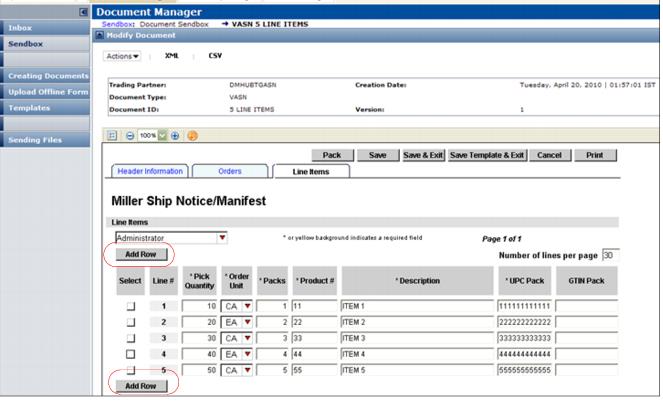
The example page below uses a Document Viewer Form.
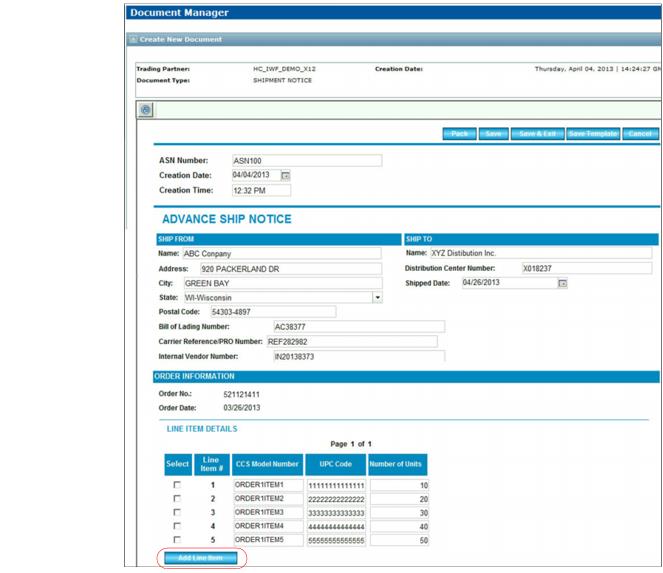
The example page below does not use a Document Viewer Form.
To return to the document list page, click Cancel.
|
7
|
To add an item, in a Document Viewer form, click Add Row, or in a form that does not use Document Viewer, click Add Line Item.
|

|
After you save the document, it displays in Document Sendbox.
 Trading Grid Online User Guide PDF
