To set up a company account, you need the following information:
To create a company account
|
1
|
Click the Community Manager tab.
|
|
2
|
Click Company Management.
|
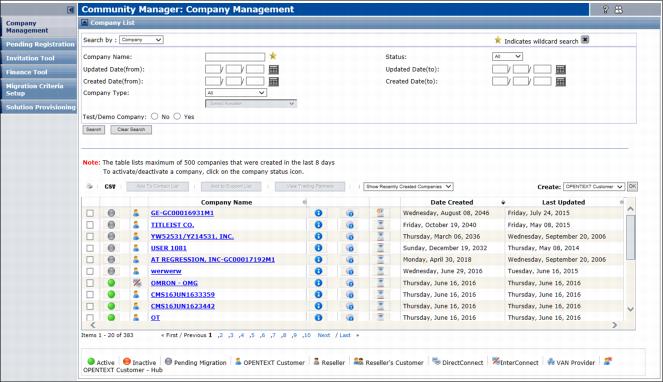
At the bottom of the list, the icons are explained, as follows.
If you are a Reseller, the  (Reseller) icon precedes your Company Name, for example the Training and Docs company.
|
3
|
Above the listing, on the right, from the Create drop-down list, select one of the following:
|

|
|
|
If you are setting up a Reseller select Reseller.
|
|
|
Otherwise, select GXS Customer.
|
|
4
|
The Step 1: Identify Company page opens.
Note: If you previously created the parent company, and this was a child company, click the Yes, identify parent company below check box and search for, or enter, the name of the parent company.
|
6
|
Click Next Step.
|
The Step 2: Company Profile page opens.
Important: If this is a parent company, for Hierarchy Access, select the Allow to create child company(s) check box.
|
8
|
Click Next Step.
|
The Step 3: Review page opens.
|
9
|
Check that the information you entered is accurate. To make any changes, click Previous Step and go back to the applicable step and make your changes. Then, click Next Step to return to this page.
|
|
10
|
Click Create.
|
|
11
|
On the confirmation page, click the Return to the company list link.
|
The new company, preceded by the (Reseller's customer) icon, displays in the Company List.
 Trading Grid Online User Guide PDF
