Use this procedure to save and schedule a report and optionally email it to contacts.
|
1
|

|
To overwrite a saved search (report) with the new search, select the Overwrite the saved search name option.
|
|
|
To save the search as a new search, select the Save as a new search option, and in the Name field type a unique, meaningful name for the new search. If you used an existing search to create the new search, the existing search stays in the system.
|
Note: In either case, the name you enter becomes the Report Name in the Scheduled Reports and Delivered Reports lists.
|
3
|
To save any of the above changes to an existing report, but not change the schedule, click Save. Otherwise, continue.
|
|
4
|
To schedule the report, select the I want to schedule this report check box.
|
Important: Do this even for one-time reports.
The dialog displays controls for scheduling and Report Format.
|
|
For a regularly scheduled report, select the option Daily, Weekly, or Monthly, then enter the day or date and time for the report schedule.
|
|
|
For an immediate, one-time report, select the Now option. (If the search uses a Specific Date Range, only Now is available.)
|
Note: You can also generate a regularly scheduled report immediately. See “To immediately generate a scheduled report” on page 462.
|
6
|
Select the Report Format.
|
|
a
|
Select the Send this report as an email attachment option. Fields for email recipients display:
|
|
|
Available Contacts in Trading Grid.
|
|
|
Available Users in your organization.
|
|
|
Select the applicable person (for multiple persons, hold down the Ctrl key and select persons), then click Add. The addresses display at right.
|
|
|
To select all in a list, click Add All.
|
|
|
|
c
|
Some users may see an Additional Recipients field. If so, you can specify email addresses not in either list. Separate addresses with a comma.
|
|
8
|
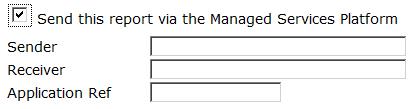
For Managed Services (MS) users, if you don’t distribute the report by email, and your company is configured in Managed Services, select the Send this report via the Managed Services Platform option.
 |
|
9
|
For TGMS users, if you don’t distribute the report by email, and your company is configured in Trading Grid Message Services, select the Send this report via TGMS option.
 |
|
10
|
|
11
|
Click Save and close the dialog.
|
 Trading Grid Online User Guide PDF
