To view a process lifecycle
|
3
|
On the Search Results page, click the View Process Lifecycle icon.
|
By default, the Item Details section of the Processing Lifecycle displays. The Summary Information section of the page shows the processing history of the file, interchange, or document.
When you scroll down on the page, the next section is the Lifecycle Details that lists all of the processing steps for the transaction, translator, application, or other service used to process the transaction. 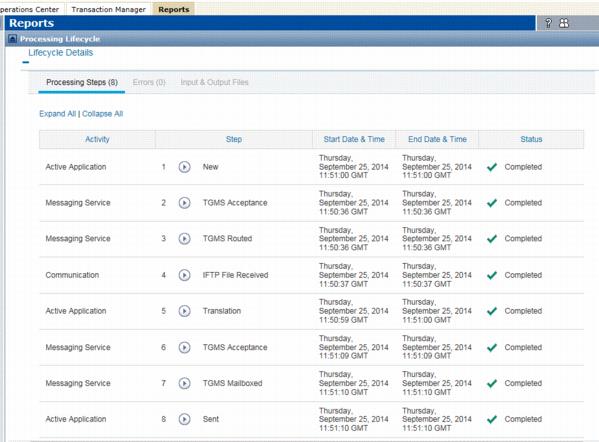
To see what occurred during a processing stage, click the icon preceding the Step name. For example, 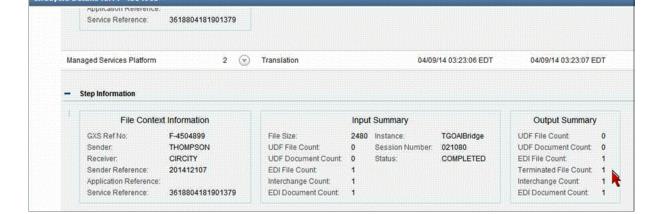
Note that you download files in different formats. Select

|
Original File to download the file without any formatting.
|
|
|
Formatted File to download the file with line breaks inserted.
|
|
|
PDF File to download the file in PDF format.
|
|
|
CSV File to download the file in a spreadsheet format.
|
Click the Lifecycle Content tab to see a hierarchy of all the files and documents involved in this one lifecycle.
In this example, you can “drill down” by clicking on a file name. This file has one interchange.
And then, drill down further by clicking on the Interchange. This interchange has one document. 
You can personalize this page, or the various sections of the page, by selecting or rearranging columns. Click Column Settings and make your selections.
 Trading Grid Online User Guide PDF
