View Input and Output Files (Translation Step)
|
1
|
 next to the Translation processing step.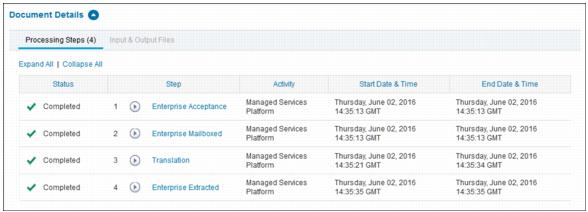
|
2
|
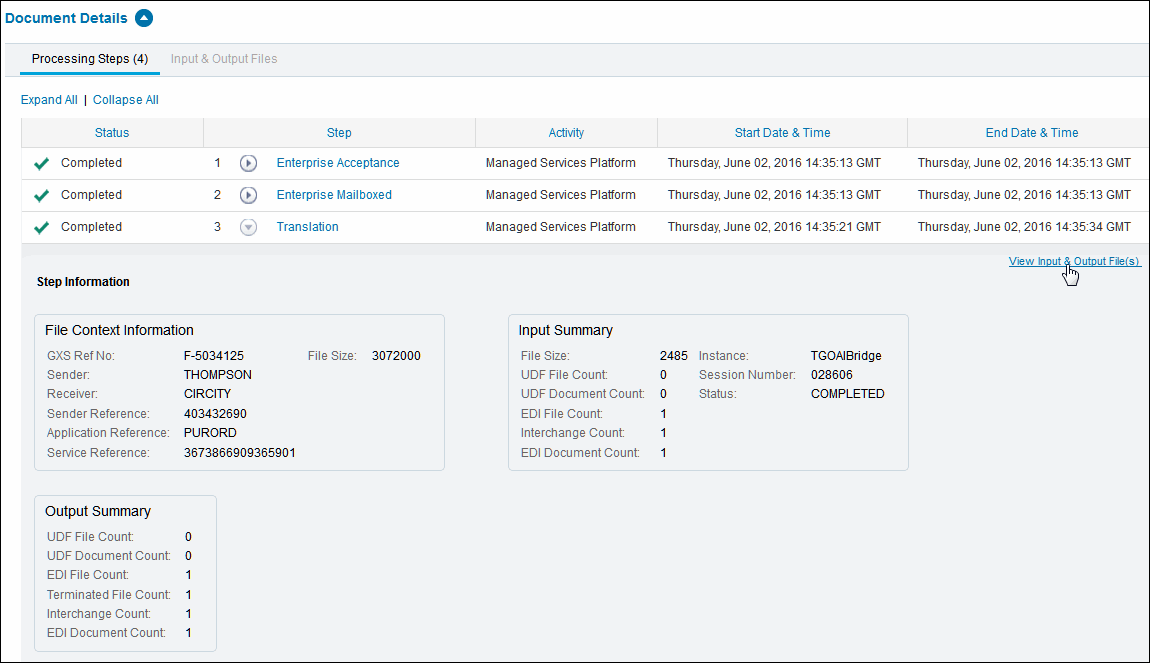
Click View Input & Output File(s).
|
|
3
|
Select Show: Output Files or Show: Input Files.
|
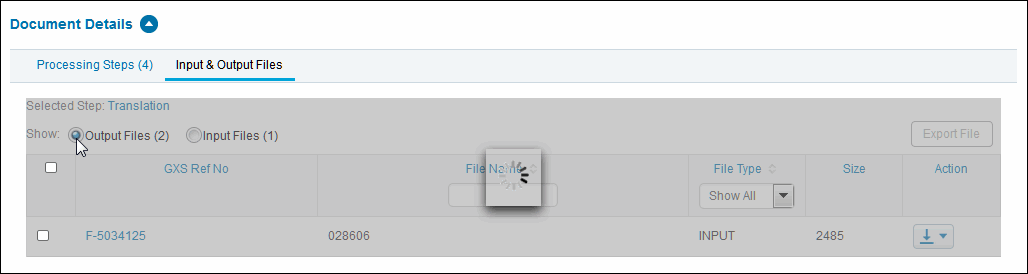
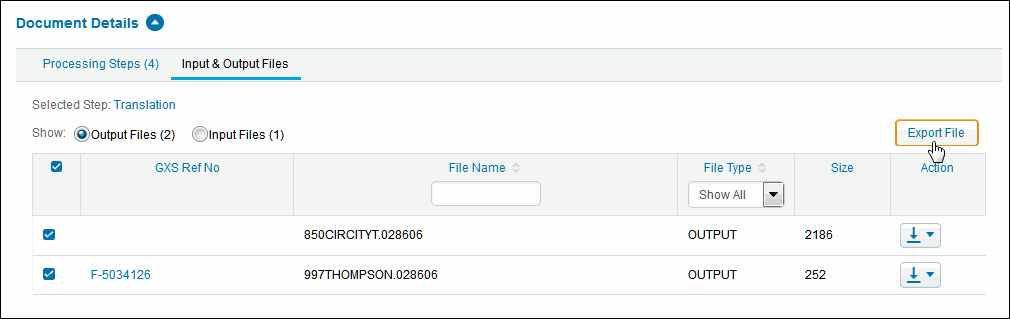
The available output or input files display in the page list.

|
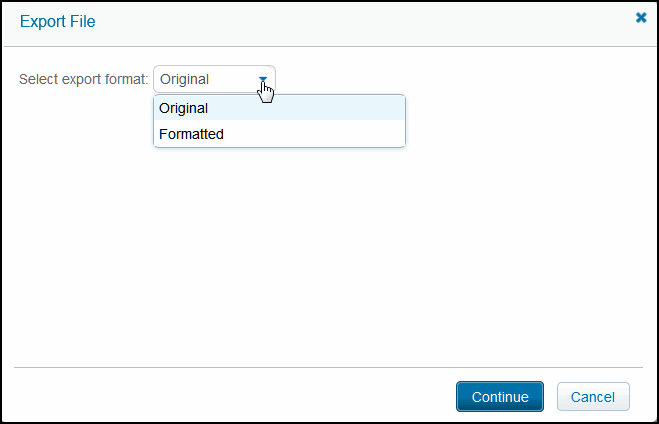
Original: Refers to the original data in the format as it was received.
|
|
|
Formatted: Refers to a formatted version with line breaks inserted for easier viewing.
|
|
6
|
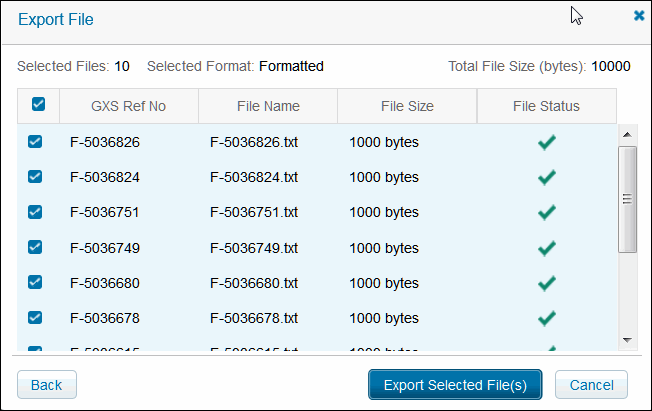
Click Continue.
|
|
7
|
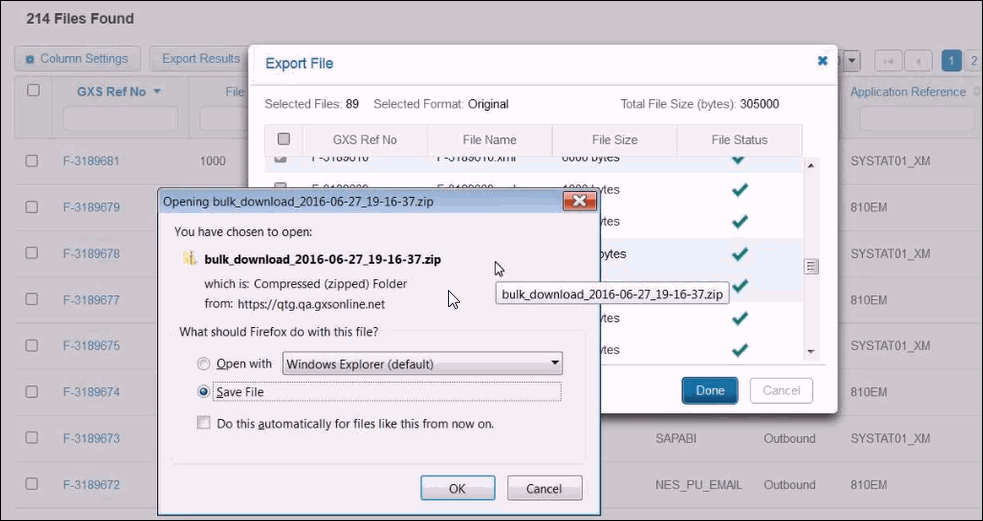
Click Export Selected Files(s) and follow the prompts to bulk download the compressed (zipped) data files.
|
|
8
|
Select Save File to save the .zip file to your Windows Explorer Downloads folder.
|
 Trading Grid Online User Guide PDF
