To search for a file
|
1
|
Click Search in the Active Documents Dashboard.
|
|
3
|
Select File for the search level.
|
|
4
|
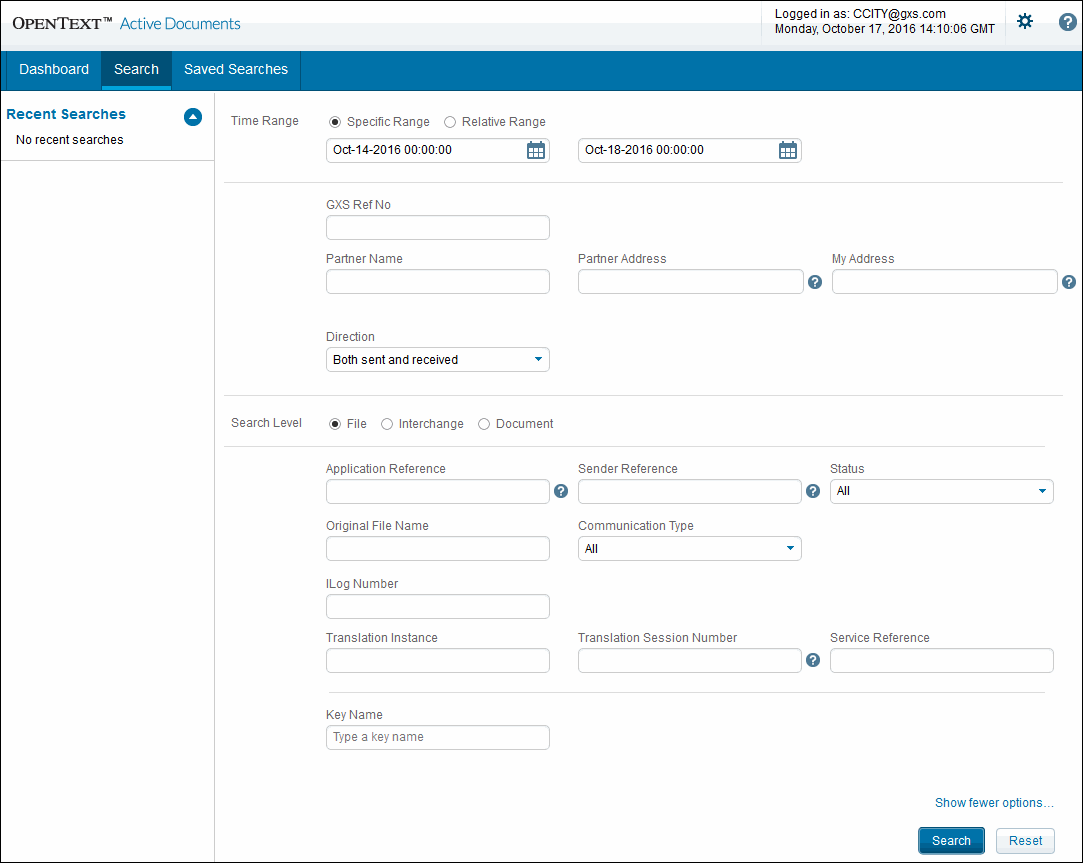
|
|||||||||||||
|
Note: If using TGMS, select DOCUMENT ID.
|
|||||||||||||

|
5
|
Click Search.
|
To search for an interchange
|
1
|
Click Search in the Active Documents Dashboard.
|
|
3
|
Select Interchange for the search level.
|

|
5
|
Click Search.
|
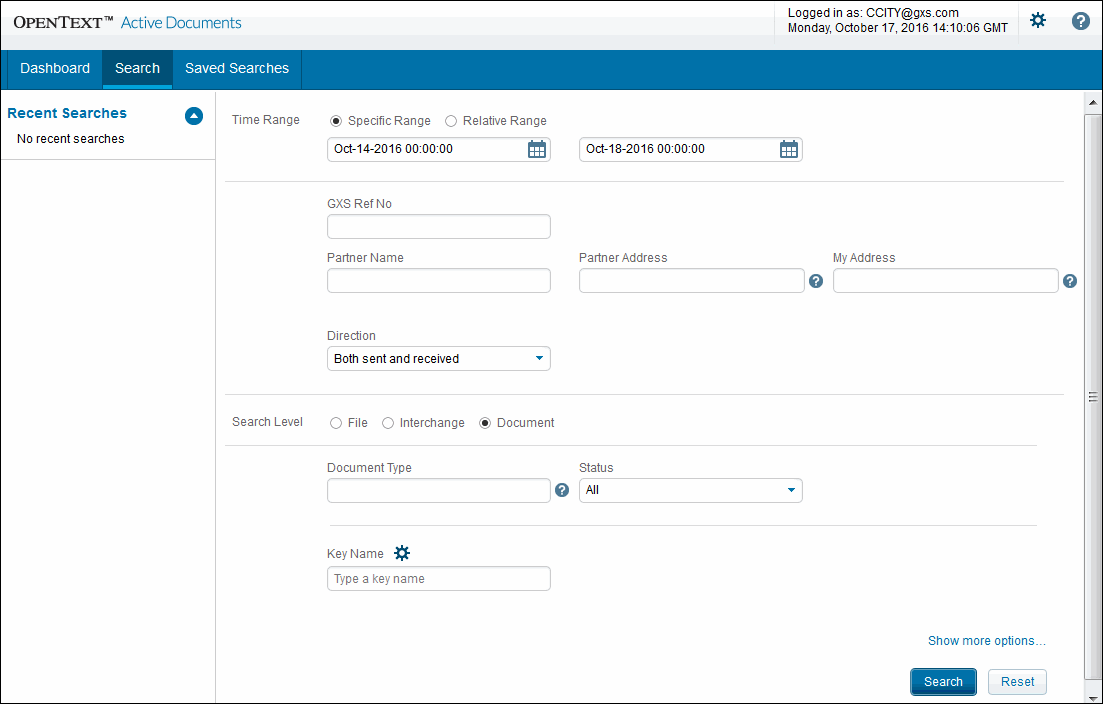
To search for a document
|
1
|
Click Search in the Active Documents Dashboard.
|
|
3
|
Select Document for the search level.
|
Set the search criteria for the document search, as applicable. To expand the document Search page, click Show other options.
|
In any implementation, leave All selected to not search based on a specific status.
|
|
|
Active Invoice for Compliance (AIC) Users: Active Documents provides additional search support for AIC. See “Active Invoices for Compliance (AIC) Additional Search Features” on page 48
TGMS Users: Select DOCUMENT ID. This applies to any type of document identification number (Purchase Order Number, Invoice Number, Ship Notice Number, etc.), specified in the key value field.
|
|
|
4
|
Click Search.
|
 Trading Grid Online User Guide PDF
